Bar / Line / Area Chart
Learn how to create a bar/line/area chart in Semaphor
Overview
Semaphor uses the open-source ChartJS 4 specification for its visuals. You can access the full ChartJS API to customize the look and feel of your charts. Here are some examples of how to quickly create common charts using simple SQL queries.
Period comparisons
Bar, horizontal-bar, line, area, and combo visuals you build in the editor can show period comparisons. Bar charts draw current and comparison bars; time-series charts draw the earlier series on the current date axis. See Metric Comparisons. The raw SQL examples below don't get built-in comparisons.
Dates that follow the dashboard date
When a chart groups by a date, it can pick its grain from the date range it shows. Set the date's grain to Automatic and the chart draws by hour for a day (when the date has a time of day), by day for up to two months, by week for up to six months, by month for up to three years, by quarter for up to twelve years, and by year beyond that. Change the dashboard date from "Last 12 months" to "Last 7 days" and the chart moves from months to days on its own. With no date range, it draws by month.
- A date you drop on a bar, line, area or combo chart starts at Automatic. A table's date starts at a fixed grain; you can choose Automatic for it too.
- Charts you already saved keep their grain until you change it.
- A click on a date in another chart narrows the range: click a day, and an Automatic chart shows that day by hour, when its date has a time.
- A period the range cuts short is named in its tooltip: "Week of Aug 3 (from Aug 6)", or "Nov 2026 (so far)" for the period still running.
Choosing a grain while viewing. An Automatic chart shows a small grain label in its header, such as "Week · Auto". Open it to pick another grain. Each choice shows how many points it draws, and a grain is unavailable when the date has no time of day (Hour) or it would draw too many points. Your pick holds for the dates you made it under: change the dashboard date and the chart goes back to Automatic; return to those dates and your pick returns. Exports you take from the page use your pick; scheduled reports use Automatic.
Zooming into a range. Drag across two or more periods of an Automatic chart to look at that stretch alone, or drag along one period to look inside it (a week by day). The chart snaps to whole periods, shows them at the grain that fits the shorter range (five weeks become days), and names the range in its header (or in its top corner when the chart shows no header) with a Reset that returns it to the dashboard's dates.
- The zoom changes this chart only. Other charts, and the dashboard's filters, stay as they are. A single click on the chart still does what a click does.
- Drag inside a zoomed chart to zoom further. Change the dashboard date and the zoom steps aside; return to those dates and it comes back.
- Drilling into a zoomed chart keeps the zoom, and so do PDF, CSV and Excel files you download from the page. A PDF prints the range in the chart's header.
- You can zoom on vertical bar, line, area, stacked and combo charts whose date is Automatic, while viewing a dashboard, down to whole days. Zoom isn't offered while you edit the dashboard, on touch screens, on a chart grouped by hour, or on a calculated date.
Automatic applies to charts built in the editor: bar, horizontal bar, line, area, stacked and combo charts, and tables. Matrix, KPI cards and SQL cards keep the grain they are given. Changing an Automatic chart to a Matrix keeps the date at a fixed month.
Through the MCP
An agent sets the same grain with timeGrain: "automatic" on a card's query,
the word a KPI's trendGrain uses.
Simple Bar / Line / Area Charts
You can create bar, line, or area charts by structuring your query as shown below.
- The first column (categorical or time-based) is mapped to the x-axis.
- The second column (numerical values) is mapped to the y-axis.
SELECT sub_category, -- x-axis
COUNT(*) -- y-axis (number)
FROM sales_data
GROUP BY sub_category
ORDER BY sub_category DESC LIMIT 100| sub_category | count |
| ------------ | ----- |
| Tables | 319 |
| Supplies | 190 |
| Storage | 846 |
| Phones | 889 |
| Paper | 1370 |
| Machines | 115 |
| Labels | 364 |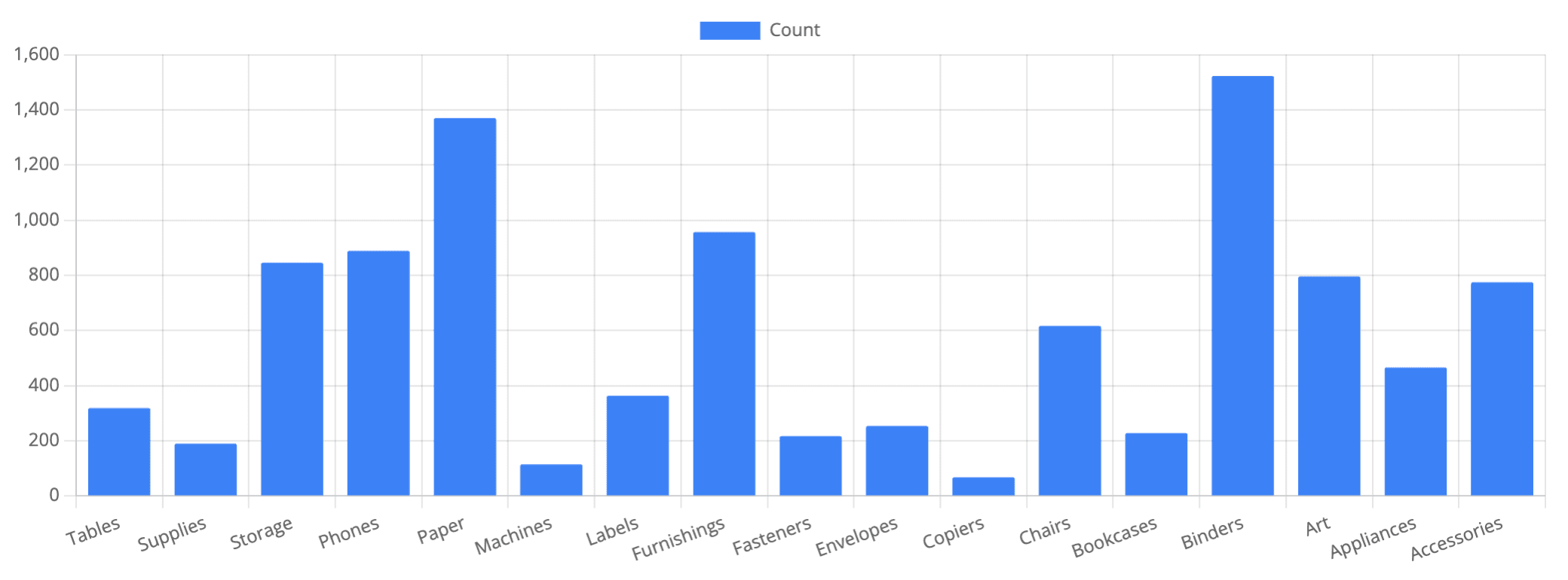
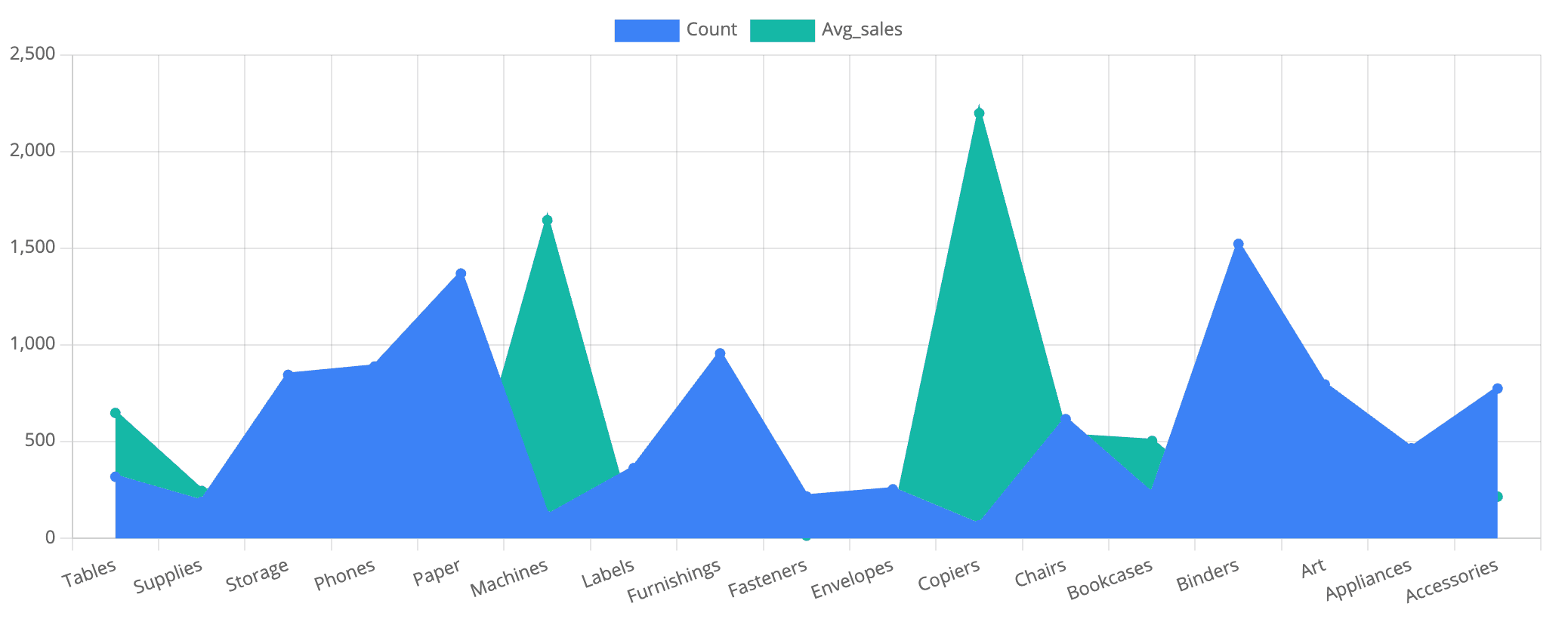
To create an area chart, add the type: line and fill: origin properties to the chart configuration. For more detailed customization, refer to the Chartjs docs.
"datasets": [
   {
    "type": "line",
    "fill": "origin", // fill the area under the line
    "label": "Count",
    "data": [],
    "backgroundColor": "#3b82f6",
    "borderColor": "#3b82f6"
   },
   {
    "type": "line",
    "fill": "origin", // fill the area under the line
    "label": "Avg_sales",
    "data": [],
    "backgroundColor": "#14b8a6",
    "borderColor": "#14b8a6"
   }
  ]
Multivariate Chart
To create a multivariate bar chart, you could add another aggregate metric, such as Avg_Sales, to the above query. You can add as many metrics you would like.
SELECT sub_category, -- x-axis
COUNT(*), -- y-axis-1
AVG(sales) as AVG_sales -- y
FROM sales_data
GROUP BY sub_category
ORDER BY sub_category DESC LIMIT 100| Sub Category | Count | Avg_Sales |
| ------------ | ----- | --------- |
| Tables | 319 | 648.80 |
| Supplies | 190 | 245.65 |
| Storage | 846 | 264.59 |
| Phones | 889 | 371.21 |
| Paper | 1370 | 57.28 |
| Machines | 115 | 1645.55 |
| Labels | 364 | 34.30 |
| Furnishings | 957 | 95.83 |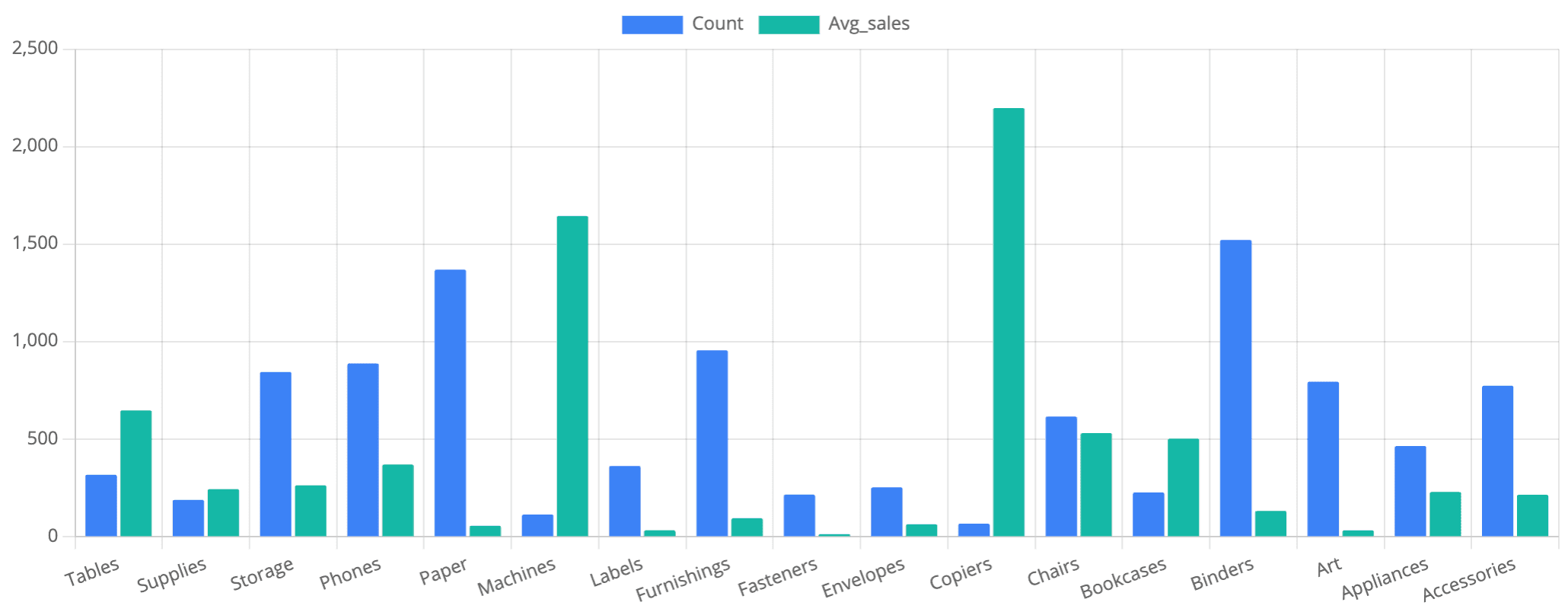
Combo Chart
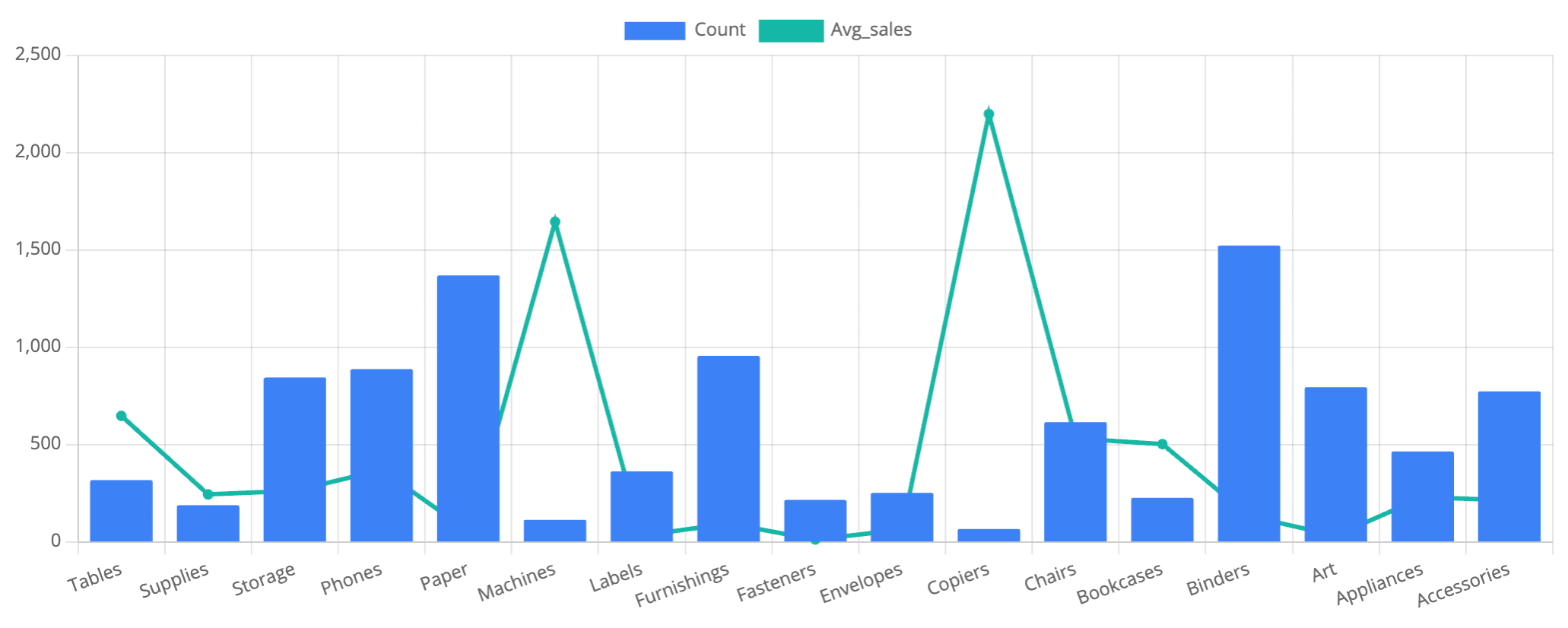
You can also change any of the dataset in the chart config to a line type to create a combo chart.
"datasets": [
   {
    "label": "Count",
    "data": [],
    "backgroundColor": "#3b82f6",
    "borderColor": "#3b82f6"
   },
   {
    "type": "line", // change to line type
    "label": "Avg_sales",
    "data": [],
    "backgroundColor": "#14b8a6",
    "borderColor": "#14b8a6"
   }
  ]
Usage Tips
- Ensure that the the values in the first column are categorical or time-based.
- Apply sorting
ORDER BYto improve readability. - Use
LIMITto control the number of data points for performance and clarity.