Version Control with GitHub
Track changes, restore previous versions, and back up your dashboards with GitHub
Overview
Version control lets you track every change to your dashboards and semantic domains. Connect a GitHub repository once, then commit changes whenever you're ready. If something breaks, restore any previous version in seconds.
Semaphor stores the working copy of your dashboard, the one you edit and your users see. When you commit, a snapshot is saved to GitHub. All the version history lives in GitHub, and Semaphor allows you to restore any previous version.
Why Version Control?
Recover from mistakes instantly. Someone accidentally deleted a chart or broke a filter? Restore the previous version in two clicks instead of rebuilding from scratch.
Know who changed what. When a metric looks wrong, trace it back to the exact change. See who made it, when, and what the dashboard looked like before.
Meet compliance requirements. Auditors want proof of what reports looked like last quarter? Every version is preserved with timestamps and author information.
Deploy with confidence. Test changes knowing you can roll back anytime. No more "I hope this doesn't break anything" moments.
Back up your work automatically. Your dashboards live in GitHub alongside your code. If anything happens to Semaphor, your configurations are safe.
Quick Start
1. Connect GitHub (Admin, one-time)
Only admins can connect GitHub. Once connected, all organization users can commit.
Go to the Semaphor Projects page.
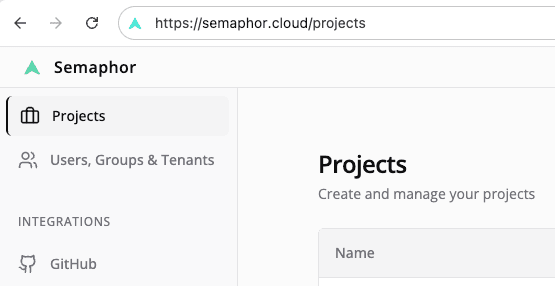
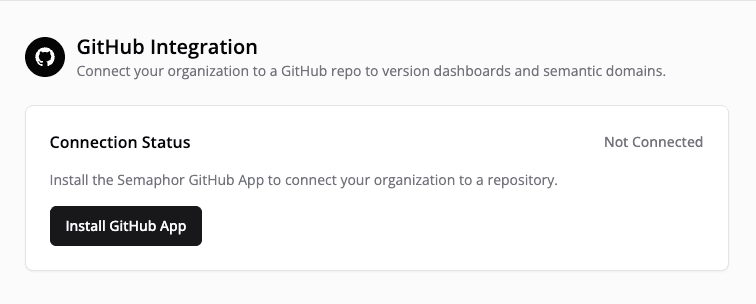
Click GitHub, then Install GitHub App.
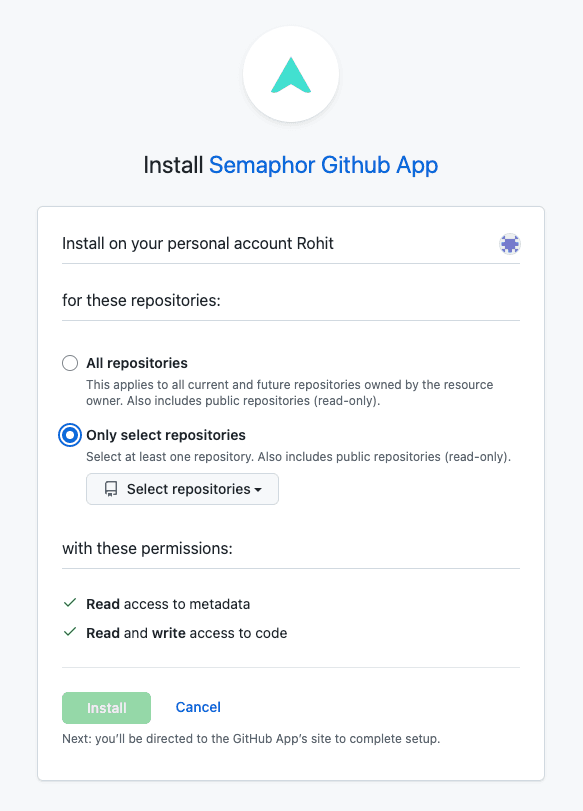
Select the repository you want to connect. If you don't have one yet, create it on GitHub first, then return here.
The GitHub App needs:
- Contents: Read & Write (to create commits)
- Metadata: Read (to list repositories)
After clicking install, wait for Semaphor to complete the setup. You'll be redirected to the Projects page.
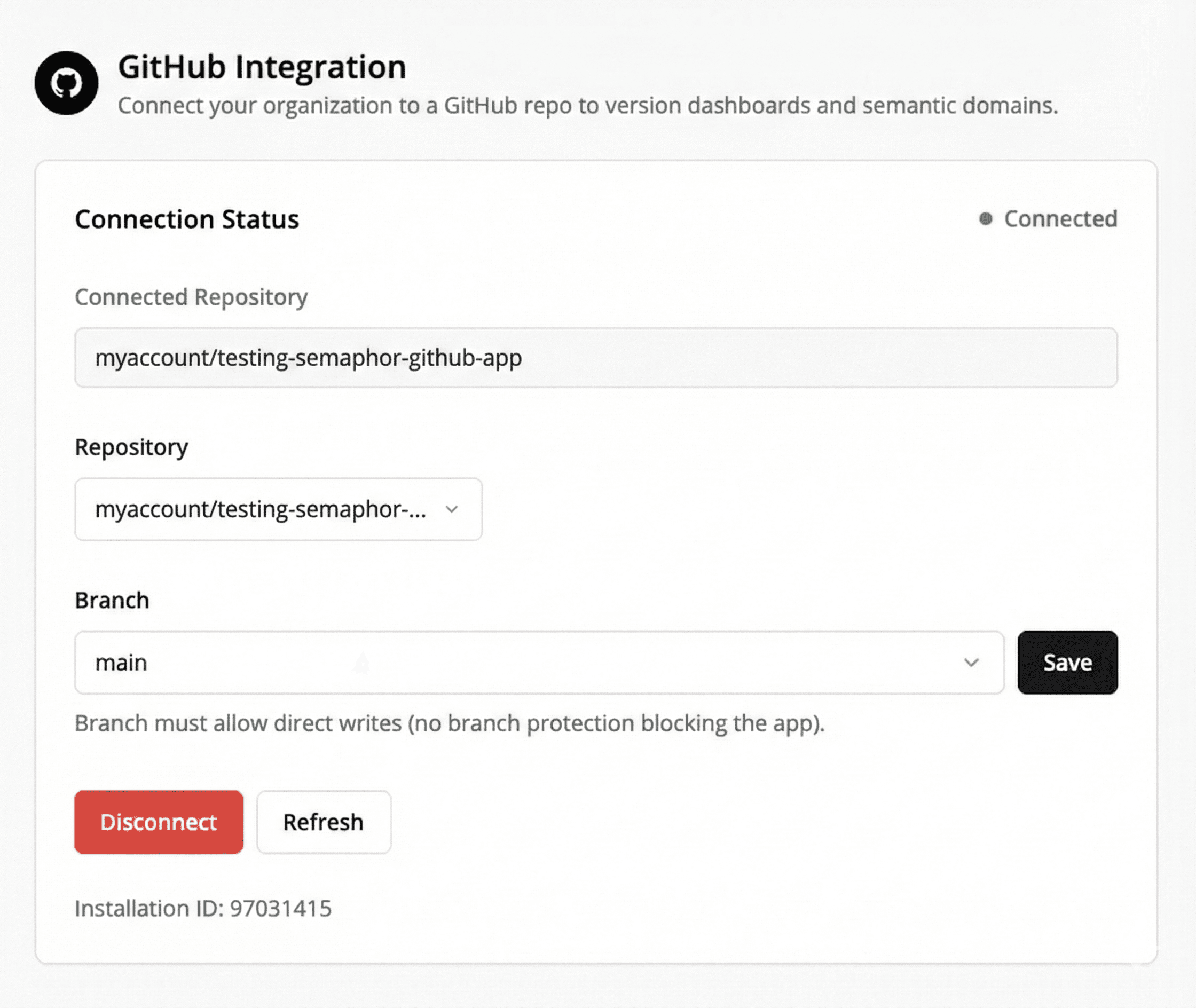
That's it! Open any dashboard and you'll see Commit and History buttons in the toolbar.
If an administrator disconnects GitHub, Semaphor automatically disables Require commit message when saving for the organization's projects. Dashboard saves therefore continue normally after the repository is disconnected.
2. Make changes
Edit your dashboard as usual and save.
3. Commit
Click Commit, add a message, and you're done. Your changes are now versioned.
Committing Changes
After editing and saving a dashboard:
- Click the Commit button in the toolbar
- Enter a commit message describing your changes
- Click Commit to GitHub
Your commit appears in GitHub with you as the author.
Writing Good Commit Messages
Be specific about what changed:
| Good | Avoid |
|---|---|
| Add Q4 revenue metrics to executive dashboard | Update |
| Fix date filter defaulting to wrong range | Fix bug |
| Update chart colors per brand guidelines | Changes |
Programmatic dashboard changes
Dashboard create, update, duplicate, and migration APIs accept an optional
commitMessage. The target project's Require commit message when saving
setting controls whether that message is optional or required.
| Project setting | Commit message | Result |
|---|---|---|
| Disabled | Omitted | Save without committing |
| Disabled | Provided | Save and commit |
| Enabled | Omitted | Reject before saving with COMMIT_MESSAGE_REQUIRED |
| Enabled | Provided | Save and commit |
| Enabled | GitHub unavailable | Reject before saving with VCS_NOT_CONFIGURED |
Semaphor saves the dashboard before creating the Git commit. If GitHub rejects
the commit after the save succeeds, the API returns 502 with
errorCode: "COMMIT_FAILED" and dashboardSaved: true. The saved change is
preserved; retry it with Commit a dashboard.
This policy applies to organization users. Tenant users continue through the
normal save flow when no commit message is provided. If a tenant user supplies
a commit message, the API rejects the request with
VERSION_CONTROL_ORG_USER_REQUIRED because tenant users cannot access version
control.
Only changes to the versioned dashboard template require a commit. Visibility-only changes can be saved without a message because sharing and visibility settings are not stored in the Git file.
When commit on save is disabled and a pipeline needs validation as a separate gate, use this sequence:
- Save the dashboard without
commitMessage. - Call Validate a dashboard.
- When
isValidistrue, call Commit a dashboard.
The commit endpoint is also safe to retry. If the saved dashboard already matches
GitHub, it returns no_changes as a successful result.
Understanding the Status Badge
The toolbar shows your current sync status:
| Badge | Meaning | Action |
|---|---|---|
| ✓ abc1234 (green) | Synced with GitHub | You're up to date |
| Uncommitted changes (amber) | Saved but not committed | Commit when ready |
| Not committed (gray) | Never committed | Make your first commit |
Hover over the badge to see the last commit message and author.
Viewing History
Click History in the toolbar to see all commits for this dashboard.
Each entry shows:
- Commit ID (short)
- Commit message
- Author name
- When it was made
- Link to view on GitHub
Restoring Previous Versions
To restore an older version:
- Open History
- Find the commit you want
- Click Restore
- Confirm in the dialog
Restoring replaces your current dashboard. If you have uncommitted changes, commit them first or they'll be lost.
After restoring:
- A new commit is created: "Restore to abc1234"
- Your dashboard updates immediately
- The status badge shows the new commit
Supported Artifacts
| Artifact | Status |
|---|---|
| Dashboards | Supported |
| Semantic Domains | Coming soon |
Troubleshooting
| Error | Cause | Solution |
|---|---|---|
| GitHub not configured | No admin has connected GitHub | Ask an admin to set it up |
| No changes to commit | Content matches last commit | Make changes first, then commit |
| Branch is protected | GitHub branch protection rules | Use an unprotected branch or adjust rules |
| Access revoked | GitHub App was uninstalled | Reinstall the GitHub App |
FAQ
Do users need GitHub accounts?
No. Semaphor uses your Semaphor profile (name and email) for commit attribution. Only admins need GitHub access during setup.
What exactly gets versioned?
The complete dashboard template: sheets, cards, filters, layout, and settings. All stored as a single JSON file per dashboard.
Can I see diffs between versions?
Yes — click the GitHub link on any commit to see the full diff in GitHub's interface.
Who can commit?
Organization users only. Tenant users (embedded analytics end-users) cannot access version control. An organization user can commit only when their organization owns the target project; shared edit access from another organization does not grant access to the project's GitHub repository.